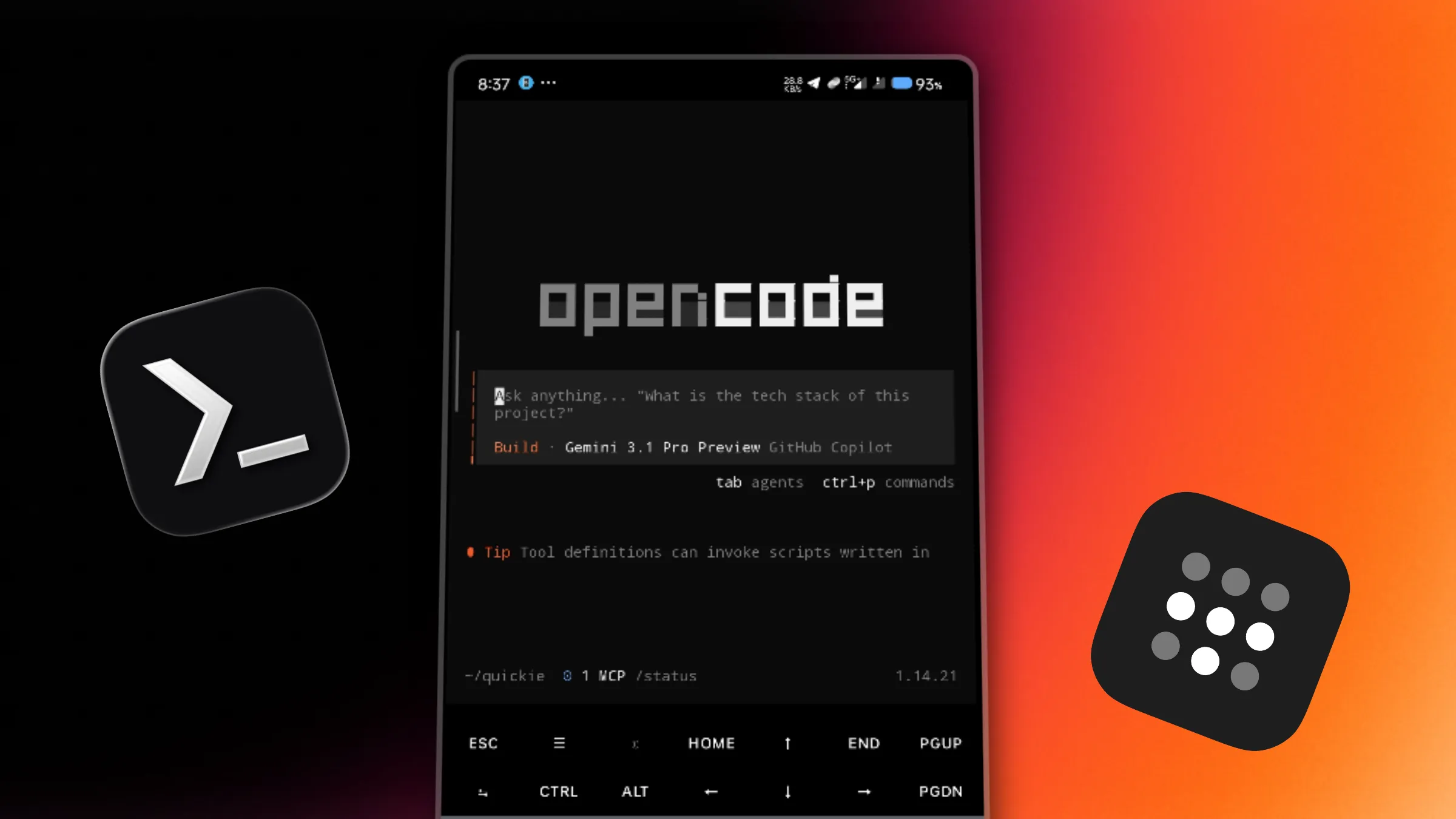
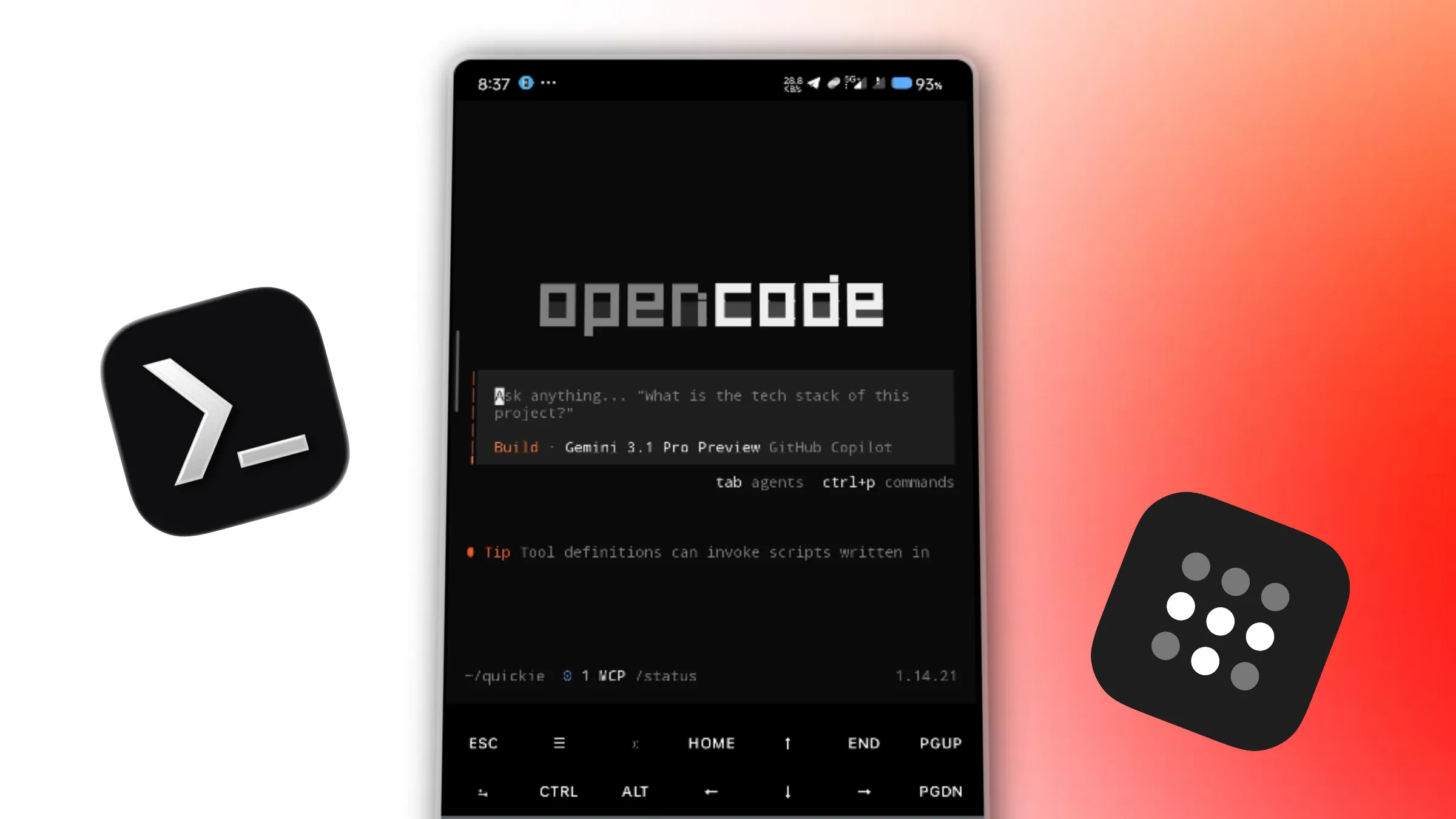
TLDR; SSH into your computer from your phone using Termux + Tailscale. Full terminal access, anywhere, over an encrypted tunnel.
I used this exact setup during a hackathon where external AI tools were restricted. I coded, wrote documentation, and even built presentations - entirely from my phone using opencode.
Here's how to replicate it.
The Problem: You're Away From Your Machine
You're on the train. You get a Slack message about a critical bug in production. Or you just had a great idea and want to prototype it before you forget. Your laptop is at home.
Being tethered to a physical machine is a real productivity bottleneck. But here's the thing: if you have terminal access, you have everything. Your editor, your git history, your dev server - all of it.
The Solution: A Secure Tunnel to Your Code
Two tools, zero complexity:
- Tailscale: Creates a secure peer-to-peer VPN. Every device on your Tailscale network gets a stable private IP regardless of what network it's connected to. No port forwarding, no dynamic DNS.
- Termux: A full Linux terminal emulator for Android. It's not an emulator in the traditional sense - it's a real Linux environment with its own package manager.
Together, they let your phone SSH directly into your computer as if they're on the same local network - even if one's on mobile data and the other's behind a corporate firewall.
Step 1: Setting Up Your Accounts and Tools
1.1. Create a Tailscale Account
Head to tailscale.com and sign up. The free tier supports up to 3 devices which is plenty for this. The onboarding flow walks you through connecting your first device, so just follow along.
1.2. Install the Software
Step 2: Verify the Connection
Before you try to SSH in, confirm that both devices appear in your Tailscale network.
Option 1 : Check the admin panel:
Go to the Tailscale admin console. You should see both devices listed as connected.
Option 2 : Check via terminal:
tailscale status
Make sure both your computer and phone show as online.
If your computer shows as offline, run sudo tailscale up and
re-authenticate.
Step 3: Connecting In
Get two pieces of info from your computer first:
whoami # your username, e.g. "idityage"
tailscale ip -4 # your Tailscale IP, e.g. "100.x.x.x"
Then from Termux on your phone:
ssh your_username@YOUR_TAILSCALE_IP
The first time you connect, you'll be prompted to verify the host fingerprint. Type yes to continue and it'll be saved for future connections.
You're in. That's it.
Why this is secure (and why you don't need SSH keys)
You might be thinking: "I'm SSHing with just a password, isn't that risky?"
No, and here's why.
Tailscale builds a private WireGuard mesh between your devices. Your machine's Tailscale IP (100.x.x.x) is not a public IP — it only exists inside your Tailscale network. No one on the internet can route packets to it. It's invisible to the outside world.
Even if someone knows your Tailscale IP and your username, they cannot connect. Your SSH port is completely unreachable to anyone not authenticated into your Tailscale account. The attack surface simply doesn't exist.
Every device on Tailscale has its own cryptographic WireGuard key pair, generated on-device and never shared. When you log into Tailscale on a new device, it gets its own key. Authentication happens at the network level — before any SSH traffic is even possible. SSH keys are a great practice in general, but they're solving a problem this setup doesn't have.
Step 4: Make It Useful
A raw SSH session is powerful, but a few extra tools take it to a different level.
Persistent sessions with tmux
If you close Termux or your connection drops, tmux keeps your session alive on the remote machine:
# Start a named session
tmux new -s dev

# Detach (keeps running in background)
# Ctrl+B, then D

# Reattach from a fresh SSH session
tmux attach -t dev
No more losing your running dev server because you switched apps on your phone.
AI-assisted coding
Once you're in a tmux session, you have full access to any CLI tool installed on your machine including opencode. This is exactly how I used it during that hackathon:
opencode # In your project directory
From there it's the same experience as sitting at your desk. The context is your machine, the compute is your machine, the AI API calls go out from your machine. Your phone is just the input terminal.
Going Further: Make It Always-On
There's one real limitation to this setup your computer has to be on and connected to the internet. Lose power, or kill your home internet, and the connection drops.
If you want true anywhere-at-any-time access, the next step is obvious: move your dev environment to a VPS.
Spin up a cloud machine AWS EC2, Hetzner (cheap and fast), DigitalOcean, pick your poison. Then just install Tailscale on it the same way you did on your local machine:
# On your VPS
curl -fsSL https://tailscale.com/install.sh | sh
sudo tailscale up
That's it. It joins your Tailscale network, gets a private IP, and you SSH into it from Termux exactly the same as before. Except now it's running 24/7, on a real connection, regardless of what your local machine is doing.
A Hetzner CX22 (2 vCPU, 4GB RAM) runs around $4/month. That's a persistent dev environment for the price of a coffee.
Your tmux sessions survive indefinitely. Your dev server stays up. Your builds don't get interrupted. It's the same workflow phone to terminal, except the terminal is now a machine that never sleeps.
Conclusion
Tailscale handles the networking. Termux handles the terminal. SSH ties it together. Once this is set up, your phone becomes a thin client into your full dev environment with all your tools, your configs, your git history.
The question isn't can you code from your phone. It's why you haven't set this up already.